Showing posts with label Programmers Toolbox. Show all posts

April 21, 2010

The using Statement - C#

Something that I have thoroughly enjoyed when working more with C# and .NET has been data access with LINQ to SQL. It is a nice mix between using an ORM and making direct changes to a database. One issue remains with using LINQ to SQL is handling the database connection properly. I was recently told to wrap data access code in a using statement for better performance.

The using statement guarantees that resources are properly disposed of after their use. This eliminates the need to remember to close database connections and will dispose of objects wrapped in the statement as soon as they leave scope. Even though the .NET Framework has built in memory management, there is still time between when the objects are no longer needed and when their unneeded memory is released to the rest of the program.

The following is an example of data access using the using statement:
using(_ctx = new SampleDBDataContext()){

var mainQuery = (from c in _ctx.GetTable<SampleTable>()
where c.isMain == true select c);
...
}
The using statement defines the scope of _ctx. So as soon as the database operations are complete, _ctx is trashed.

Here is a more in-depth writeup of using using with data access - http://www.w3enterprises.com/articles/using.aspx

April 19, 2010

Installing Windows Services

A Windows Service is a program that runs in the background of any Windows installation. These are similar to Daemon processes in Unix. The programs are designed not to have any user interaction and be long running.

The project I am working on right now uses a Windows service to broadcast webcam video over the internet, emulating an IP Camera. Using laptops, webcams and a Window service allows a client application to view webcam video from multiple sources at the same time.

Developing the Service Application
This is not the focus of the post, but it is important to recognize where Windows services are built. Windows services are available as a project template in Visual Studio 2008. The screenshot below shows the Window Service project type.
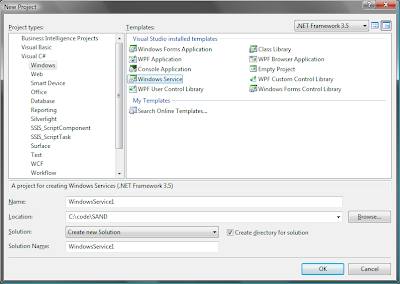
Windows services cannot be run and debugged like any other .NET project. The project did not require extensive testing, but more information would be needed if the Windows service needed to be tested before deployment.

Installing the Service

To install the service, use a command line tool called "installutil.exe." There should be an executable in the "C:\Windows\System32" directory. If it is not there, make a copy of it from another location and paste it into the System32 directory.

Run the command prompt as an administrator and the shell will open in the System32 directory. The following command installs a Windows service from the command line:
installutil "C:\path\to\the\service\executable"
Make sure that the path to the executable is memorable to make things less confusing when uninstalling. To uninstall the service, use the same command but insert a /uninstall between installutil and the path.

To start the service, type the following into the command window:
net start ServiceName
ServiceName is the name of the service in Visual Studio. Do not confuse the path to the executable with the ServiceName. To stop the service, use the same command as above with stop instead of start.

The newly started service should be in the list of locally running services. Navigate to Control Panel\System and Maintenance\Administrative Tools\Services to see the list of running services. Services can also be started and stopped with this interface.


April 18, 2010

Listing Files in a Directory - C#

A portion of my senior design project is a media center component, so I needed an easy way to check the contents of multiple directories. From there, I compare the contents with a database that contains more information about the files.

Retrieving the contents of a directory in C# is very easy, and the code is included below.
DirectoryInfo directory = new DirectoryInfo("C:/some/directory");
FileInfo[] files = directory.GetFiles();
foreach (FileInfo onefile in files){
Console.WriteLine(onefile.Name);
}
The DirectoryInfo object points at a directory on the system. From here, the program has access to create and delete other directories, list directories and files, and view last accessed time information. GetFiles() returns an array of FileInfo objects, and from there, the program has access to information about each file in the directory.

April 21, 2009

SOAP Client for Web Services Development

About two months ago, I discovered one of my favorite tools (to put in my programmers toolbox, of course) for developing software. I do a lot of work with web services, and the SOAP Client (actual url: http://www.soapclient.com/soaptest.html) is incredibly useful for testing and implementing web services.


The SOAP Client is useful for testing because it is so quick and easy. Just enter in the location of the WSDL and the SOAP Client can reach out and parse the web service into an easily understandable form, complete with help text. From here, you can test web services on the fly by entering values. This makes it easy to evaluate a web service before you go to the trouble of implementing it in a application.


Each method described in the WSDL file can be individually called from the SOAP Client. The client displays the web service request or the response according to the data that was input into text-fields. This request response information can be viewed in XML or HTML, depending on if the service is being tested (XML) or the client is being used to generate code for an application (HTML).

I use the SOAP Client in the following order:
  • Enter the WSDL location to ensure I'm calling the right service.
  • View the XML Response of a request to see if I am calling the right function.
  • View the HTML Request so I can drop it into my application.
  • View the HTML Response to the request to see if there is any tricky parsing needed.
This application saved me a lot of time and effort and has helped my Agile software development because I can quickly integrate web services. Also, I now only integrate the services I need, and am not worried about trying to generate java code from a WSDL - but that is something that I would love to try.